Arranger
Play backing tracks along with your rig, mix them, loop a section, and warp them to the tempo.
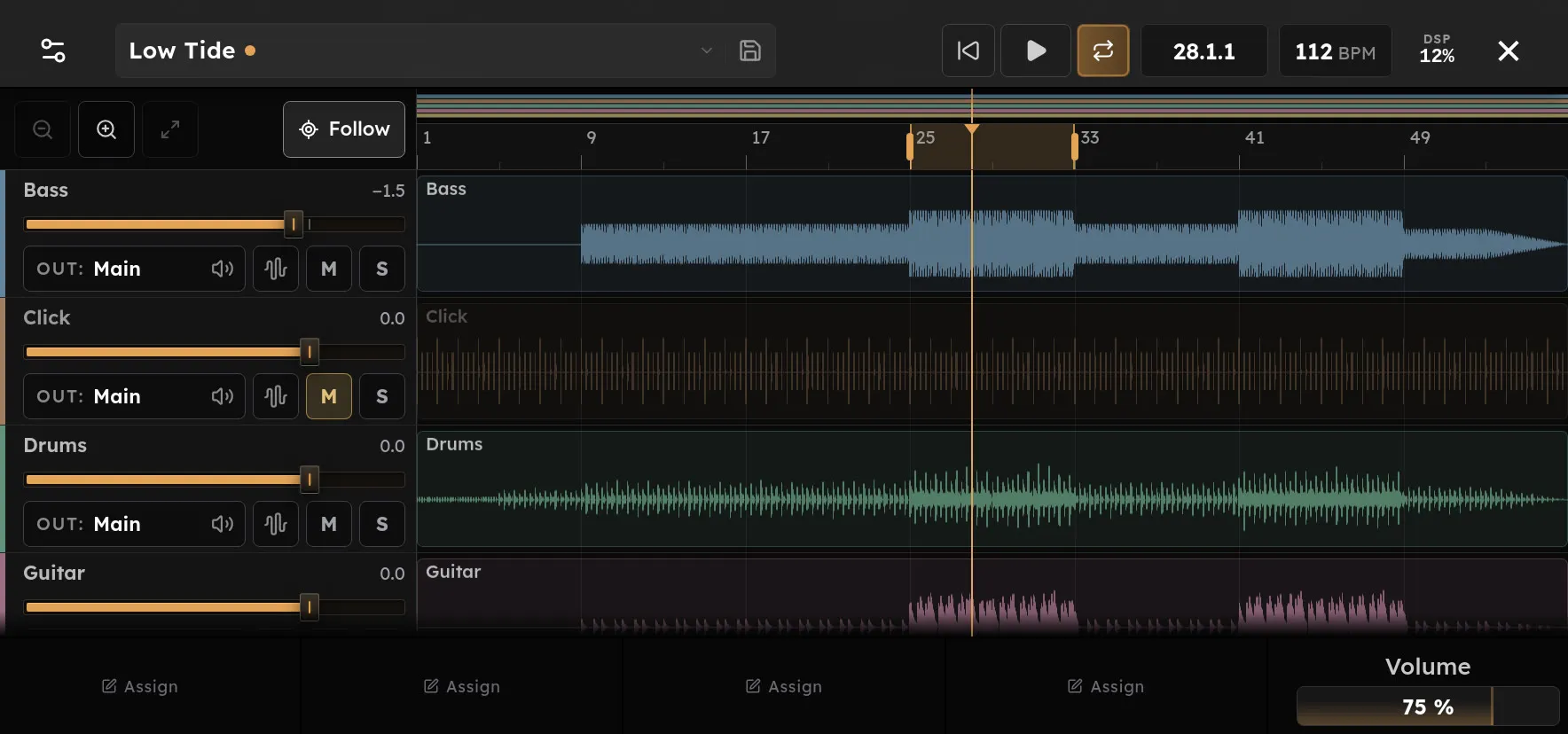
The Arranger plays a song: a set of backing tracks (stems) such as drums, bass, keys and a click, lined up on a timeline. Your rig keeps running while you are in the Arranger, so you play along live through your own sound. Mix the tracks, loop the section you are practising, send a track through one of your chains, and let tracks follow the tempo when you speed a song up or slow it down.
Opening the Arranger
- Tap the Main Menu button, then Arranger.
- While a song is loaded, a thin Song line sits at the top of Rig, Scene, Stomp and Song Mode, showing the song’s name (and its set list). Tap it to open the Arranger.
- While a song is loaded, the top toolbar also shows Play / Pause and the song’s position in place of the tempo, so you can start and stop the song from any mode. Tap the position to open the Arranger.
- Assign Open Arranger Mode to a footswitch (see Footswitch Assignment).
- To have it in the top toolbar beside the other view modes, turn on Arranger Mode in Settings › Preferences › Modes. It is off by default.
Tap ✕ to go back to the screen you came from. The song stays loaded, and keeps playing if it was playing.
The top bar
From left to right:
- Menu: the Main Menu.
- Song name: opens the song list in the Library. A dot beside the name means the song has changes you have not saved. While a song loads, its progress shows here.
- Save: saves the song (see Saving a song).
- Return to start, Play / Stop, and Loop (on or off).
- Position in bars, beats and sixteenths, starting at 1.1.1.
- Tempo in BPM. Tap it to open the tempo panel.
- DSP load, and ✕ to leave.
Making a song
A song is a folder in Songs, holding the song’s audio files: one file per track, in WAV or FLAC. To make one:
- Connect to the Axion Network Folder from your computer.
- In the Songs folder, make a folder named after the song.
- Copy the song’s stems into it, one file per track. Each track takes its name from its file.
You can also make an empty song on the unit, in the Library under Songs, with New Song, then fill its folder over the network.
Tracks can’t be recorded, added, or imported on the unit itself in this version: a song’s tracks are the audio files in its folder.
Opening a song
Tap the song name in the top bar (or Open Song when no song is loaded) to open the Library on Songs. Tap a song to see its tempo and tracks, then tap Load. Stop the song first: while one plays, the button reads Stop to load.
On the song that is already loaded, the button reads Reload: it reads the song again from its folder (for example after you copied in another stem) and drops any unsaved changes.
If a track’s audio file can’t be found, the track shows Missing file and stays silent. The rest of the song plays.
Tracks
Each track has a row on the left of its lane:
- Level: drag the fader sideways to set the track’s level. The number above it is in dB. Double-tap the fader to put it back to 0 dB.
- Out: where the track plays (see Playing a track through a chain).
- Warp (the waveform button): opens the track’s options (see Following the tempo).
- M mutes the track. S solos it, so only soloed tracks play.
Moving around the song
- Play / Stop plays from the playhead and stops where it is. Return to start takes the playhead back to the start.
- Tap the ruler (the bar numbers along the top) to move the playhead there, or drag the playhead to scrub through the song.
- The thin strip above the ruler shows the whole song. Tap it to jump to that part of the song.
- Zoom with the zoom buttons, or pinch the lanes. The third button fits the whole song on screen. Drag the lanes sideways to move along the song, and up and down to see more tracks.
- Follow keeps the playhead in view while the song plays. Dragging the lanes sideways while zoomed in turns it off. Tap Follow to turn it back on.
Looping a section
Turn on Loop in the top bar to play one section over and over. The loop is the shaded band on the ruler. Drag its start and end handles to set it. Double-tap inside the band to make the loop the whole song again.
Tempo
Axion has one tempo, the metronome’s. The tempo panel sets it with step buttons, a fader, or TAP. When a song loads, the device takes the song’s tempo, and saving a song stores the current tempo in it.
Tracks keep their own speed unless they are warped. A warped track follows the tempo, so you can slow a song down to learn it and speed it back up.
Following the tempo
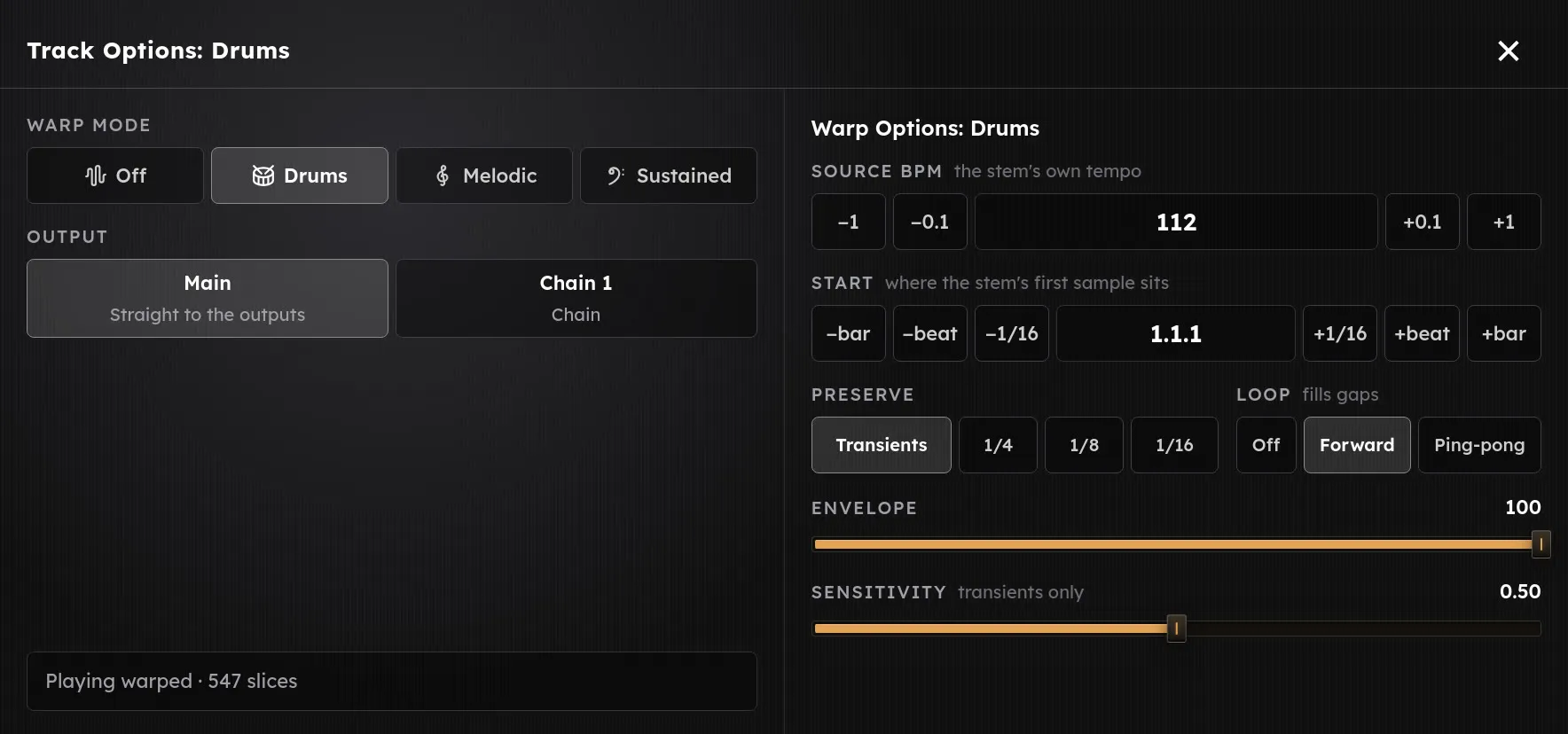
Tap a track’s warp button to open Track Options. Under Warp Mode, choose how the track follows the tempo:
- Off: the track plays at its original speed, whatever the tempo.
- Drums: for drums and other percussive parts. It keeps the hits tight.
- Melodic: for bass, keys, guitar and vocals.
- Sustained: for pads and long, held notes.
Once a track is warped, set:
- Source BPM: the tempo the track was recorded at. It starts at the song’s tempo; use the step buttons to correct it.
- Start: where the track’s first sample sits, in bars, beats and sixteenths. Use it to line a track up that starts late or early.
Drums also has:
- Preserve: what to keep intact when the tempo changes, either the Transients (each hit) or a fixed grid of 1/4, 1/8 or 1/16 notes.
- Loop: how the gaps are filled when the track is slowed down: Off, Forward, or Ping-pong.
- Envelope: at 100 each hit rings until the next one. Lower values fade each hit out sooner, for a tighter, drier sound.
- Sensitivity (with Transients only): how readily a hit is found. Higher finds more, softer hits.
The bottom of the left side says how the track is playing now, for example Playing warped.
Playing a track through a chain
Under Output in Track Options, choose where the track plays:
- Main: straight to the outputs, with no effects.
- Chain 1, Chain 2 and so on: into the start of that chain of the current rig, alongside your instrument, and through every device on it. For example, play a DI guitar track through your amp and effects.
The track’s level, mute and solo apply before it reaches the chain. If the chain is no longer in the rig (for example after you load another rig), the track goes back to Main.
Saving a song
Nothing in a song saves by itself. Levels, mute, outputs, warp settings, the loop and the tempo all change the song only until you save it. The dot beside the song name shows there are unsaved changes.
Tap Save to open Save Song:
- Save writes your changes to the song.
- To keep the original as it is, tap New Song, type a name, and save. This makes a copy of the song, including its audio files, and switches to the copy. The button shows the copy’s progress, and tapping it cancels.
Rename and delete songs in the Library. A deleted song goes to the recycle bin on the network folder and is removed for good after 30 days.
Set lists
In the Library under Songs, gather songs into Set Lists for a gig: open a song’s menu and choose Add To Set List…. A song can be in any number of set lists. In a set list, songs play in the order you set: tap Manage to drag them into order, or use Move Earlier and Move Later.
When you open a song from a set list, that set list is the active one, and Next Song and Previous Song step through it in order. Otherwise they step through all your songs by name. Both wrap around at the ends, and skip songs that have no audio.
Footswitches
These actions can be assigned to any footswitch (see Footswitch Assignment):
- Play / Pause Song: plays the song from where it is, or stops it there. The switch’s light flashes on the beat while the song plays.
- Stop Song: stops the song and goes back to its start.
- Restart Song: goes back to the start and plays.
- Next Song and Previous Song: stop the song and load the next or previous one. Any unsaved changes to the song are dropped.
- Browse Songs: opens the song list over the Arranger, at the active set list.
- Open Arranger Mode: opens the Arranger from any screen.
For lyrics and chord charts on stage, use Song Mode.