MIDI Instruments
Play a synth in your rig from a MIDI keyboard or from Guitar MIDI, and choose what plays it in the instrument's MIDI view.
An instrument is a device that makes sound from notes instead of from the audio coming into it, such as Basic Synth. It sits in a chain like any other block, and its sound replaces the chain’s signal at that point. Effects after it in the chain process the instrument’s sound.
Adding an instrument
Tap a + dot in a chain and open the Synth category of the device browser.
What plays it
You don’t need to set anything up to play a new instrument:
- Every MIDI keyboard plays it. Connect a keyboard or controller to MIDI In on the rear panel and play.
- Guitar MIDI anywhere in the rig plays it too. Add Guitar MIDI to any chain, the instrument’s own or another one, and play your guitar.
To choose for yourself, use the instrument’s MIDI view.
The Axion port
Guitar MIDI sends its notes to one shared input called Axion, on the channel it is set to. Every instrument listening to the Axion port on that channel plays along. So Guitar MIDI set to channel 1 plays every synth listening to channel 1, wherever it is in the rig. Other devices that send MIDI can send there too: see MIDI Output.
The footswitches send there too: a switch with a Send MIDI action plays its chord on the channel you give it.
Give each instrument the channels you want it to hear to keep things apart. For example, set Guitar MIDI to channel 2 and a keyboard to channel 1. A synth listening to the Axion port on channel 2 follows your guitar, and one listening to the keyboard on channel 1 follows the keys.
MIDI in a chain
Inside a chain, MIDI travels left to right, as the sound does. A device that changes MIDI, such as MIDI Toolbox, changes it only for the devices after it in its chain:
- A synth after MIDI Toolbox plays the notes MIDI Toolbox sends, for example moved up a fifth. A synth in another chain still plays the notes as you played them.
- A device never hears MIDI from a device after it.
- Bypass MIDI Toolbox and the notes pass through it unchanged.
A synth after such a device hears only that device. Its MIDI inputs then only choose channels: the device has already taken in everything else.
The MIDI view
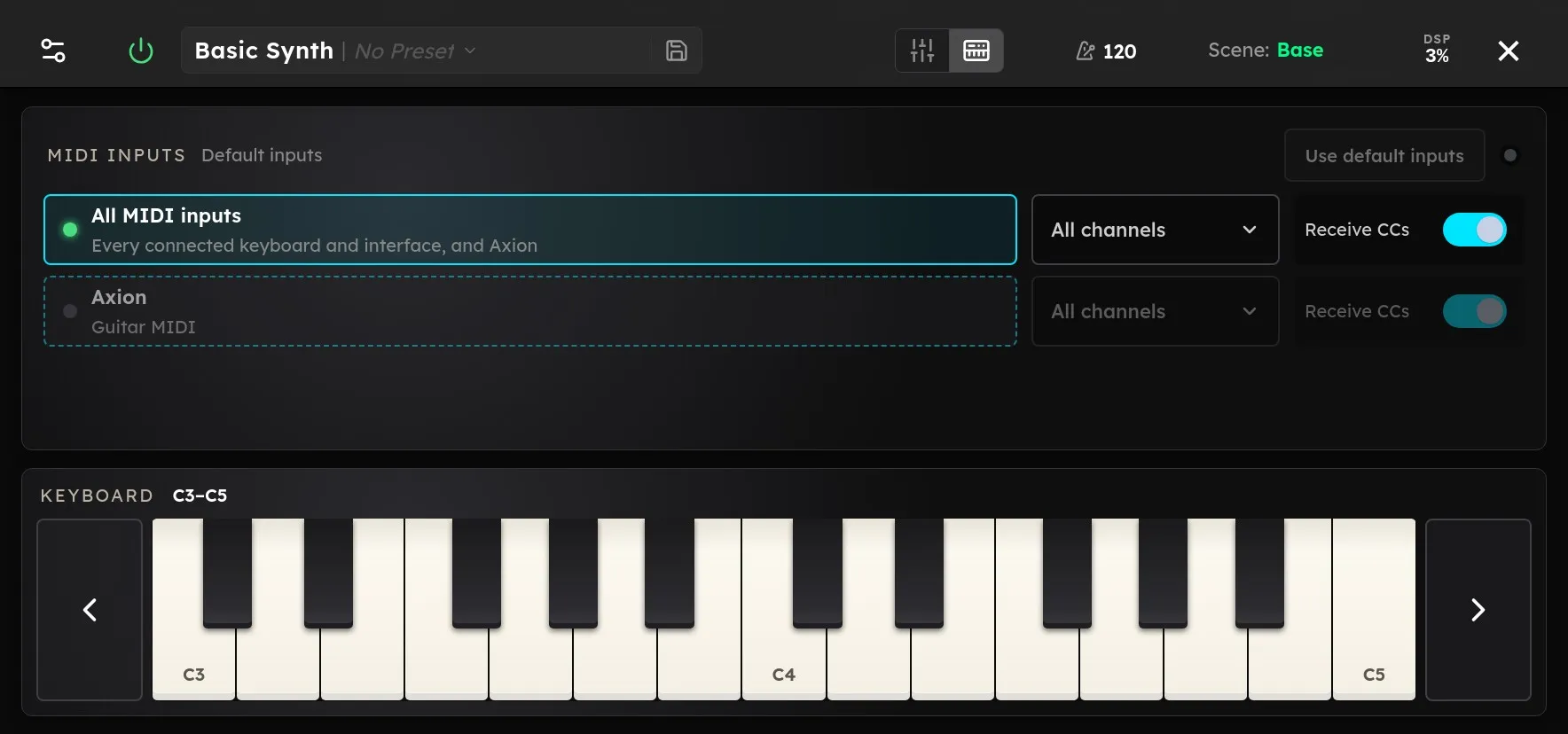
Tap the instrument’s block, then tap the keyboard icon at the top right of its screen. The MIDI view lists everything that can play the instrument, with a keyboard across the bottom to play it on the screen. A device that sends MIDI, such as Guitar MIDI or MIDI Toolbox, has a MIDI view too, with its MIDI Output beside the inputs.
MIDI Inputs
Tap a row to turn that input on or off. The list has:
- All MIDI inputs: every MIDI input Axion has, including ones you connect later, and the Axion port. While it is on, it includes the Axion port and each connected input, so their own rows are greyed out. An input’s row reads Included in All MIDI inputs.
- Axion: the port that Guitar MIDI and anything else in the rig that makes MIDI sends to. Its row says who sends on which channel, such as Guitar MIDI · ch 1. A device that has not sent any notes yet is shown by its name alone. Once a footswitch has sent MIDI, the row names it too, such as Footswitches · ch 1.
- Each connected MIDI input by name. DIN In is the MIDI In socket on Axion’s rear panel.
To pick inputs on their own, turn All MIDI inputs off first.
When a device before it in its chain passes MIDI on, such as MIDI Toolbox, the list starts with MIDI reaches this device through MIDI Toolbox. The rows then only choose the channels the instrument plays.
You can turn on up to seven inputs. An input you picked that is unplugged stays in the list as Not connected and plays again when you plug it back in. If two connected devices share a name, plug both in so Axion can tell them apart.
The line under MIDI Inputs says how the list is set. Default inputs means the instrument follows the rule in What plays it. Plays only from the keyboard below means you turned every input off. Tap Use default inputs to go back to the default.
Receive CCs
Control changes are the messages a keyboard’s mod wheel, knobs and sustain pedal send. Turn Receive CCs off on an input, the Axion port included, to keep its control changes away from the instrument while its notes still play it. A control change you have mapped to a parameter in Control Mappings always goes to that parameter only, never to an instrument.
Channels
Each input that is on has its own channels, shown in its row: All channels, or the ones you picked, such as Ch 1 or Ch 2–7. Tap them to open that input’s channels in the middle of the screen:
- All channels plays the instrument from every channel of that input.
- Tap a channel from 1 to 16 to play it from that channel only. Tap more channels to add them, and tap one again to take it away. At least one channel stays on: to stop an input, turn its row off.
The channels stay open while you pick; tap anywhere outside them to close them. While All MIDI inputs is on, the other rows show its channels and you set them on its row.
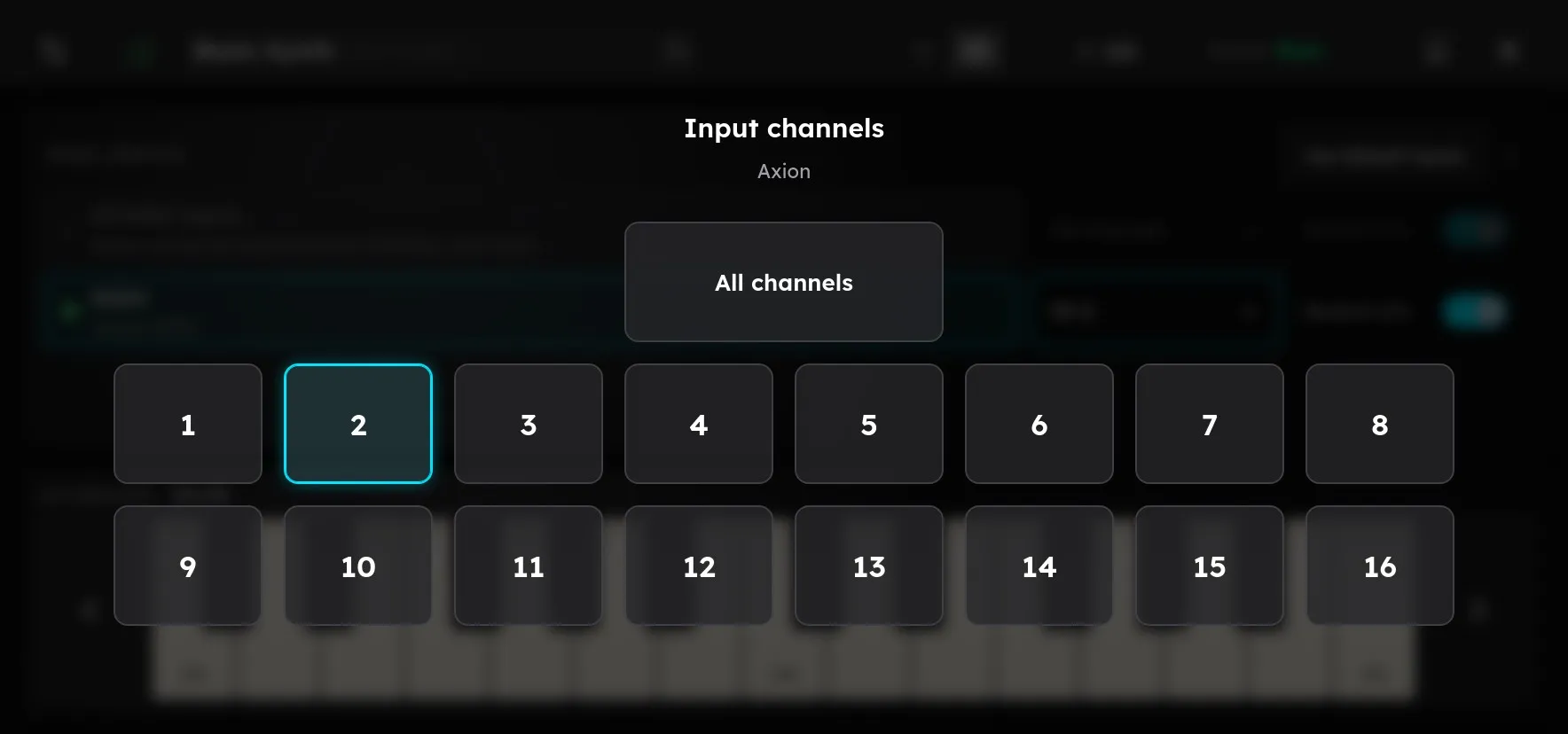
For example, you can split one keyboard between two instruments set to different channels.
Keyboard
Play the keys at the bottom of the MIDI view to hear the instrument with nothing plugged in. A note sounds for as long as you hold its key, and you can hold several keys at once to play a chord or slide along the keys. The keyboard shows two octaves; tap the arrows at either end to move it down or up an octave. The range it shows, such as C3–C5, is above the keys, and each C is labelled (middle C is C4). The keyboard stays on the octave you chose until Axion restarts. It is not part of the rig.
If a key does not reach the instrument, Didn’t play. Try again. appears above the keys. Notes still held when you leave the MIDI view stop.
MIDI Output
A device that sends MIDI has a MIDI Output section to the right of its inputs:
- Send to: This chain sends its MIDI to the devices after it in its chain only. This chain + Axion also sends it to the Axion port, so instruments in other chains that listen to the Axion port play it too. Guitar MIDI starts on This chain + Axion, a device that takes MIDI in, such as MIDI Toolbox, on This chain.
- Channel: As sent keeps the channels the device sends on. Tap it and pick a channel from 1 to 16 to send everything on that channel instead. Tap outside the channels to close them without a change.
Two devices that each listen to the Axion port and send to it can feed each other’s notes back: keep at least one of them on This chain.
A device that sends MIDI but takes none, such as Guitar MIDI, shows This device does not receive MIDI where the inputs would be.
The activity light and the overload warning
An instrument’s block in the rig editor carries a small light that flashes green while notes arrive. The same light is at the top of the MIDI view. If you play and the light stays dark, nothing is reaching the instrument, so check its MIDI inputs and their channels.
If the block shows an amber warning triangle, Axion could not keep up with all the MIDI it received, for example during a dense burst of notes. The MIDI view says what happened, such as MIDI overload: notes reset 1 time. Some notes may have been cut short or lost; Axion releases any held notes so none stay stuck. Tap Clear to dismiss the warning.
Bypass
Bypass an instrument and its notes stop: you hear the chain’s own signal again. When you turn it back on, a note still held down does not sound again. Play the next note to hear the instrument.
Saving
An instrument’s MIDI inputs, their channels and their Receive CCs, and a device’s MIDI Output, belong to the rig. Save the rig to keep them, just as you would after turning a knob.