Audio Engine
Choose the sample rate and buffer size: read the latency grid, understand the trade-off, and pick the setting that suits your rigs.
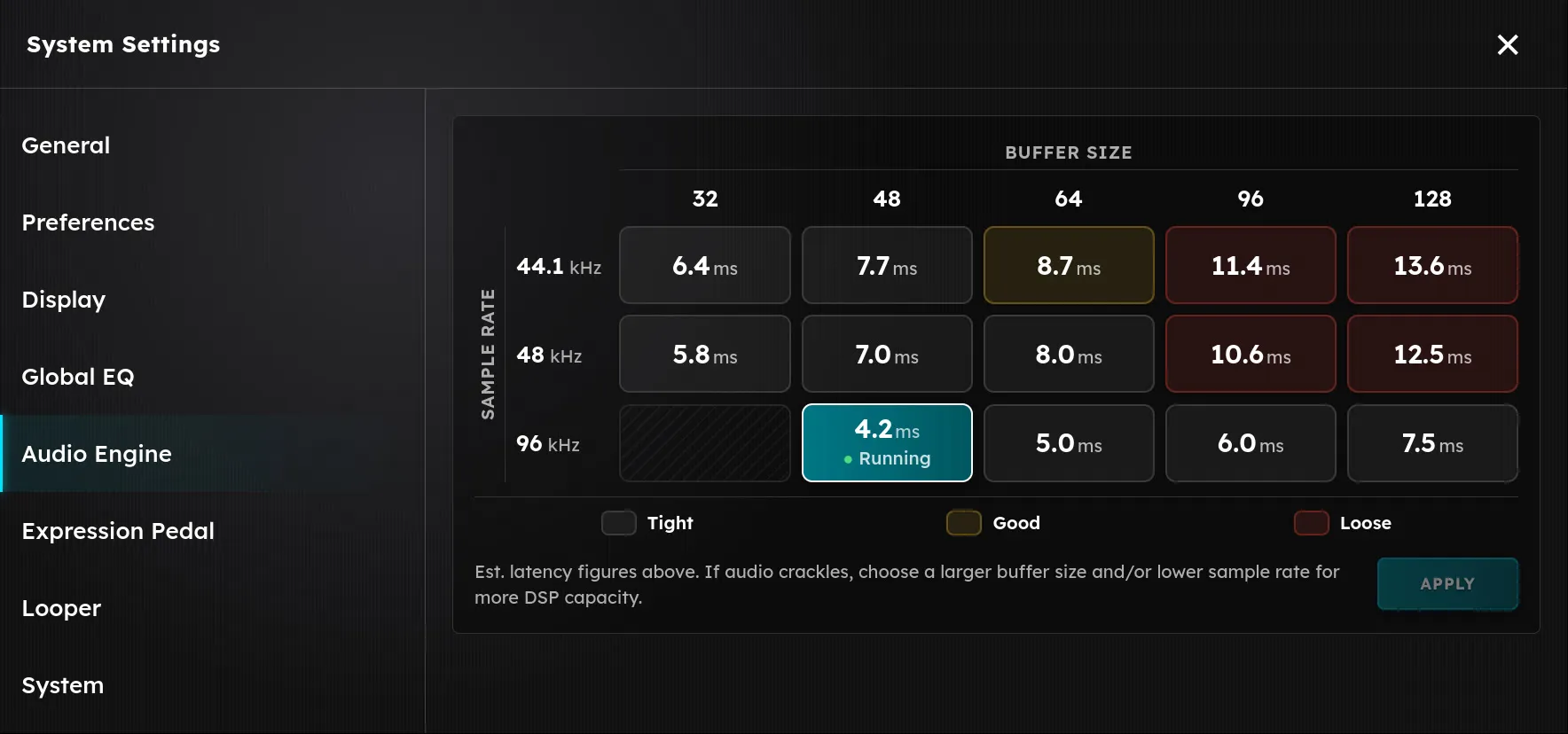
The Audio Engine page sets how Axion processes audio: the sample rate and the buffer size. Together they decide two things that pull against each other:
- Latency: how long it takes for a note you pick to come out of your speakers.
- Processing capacity: how much work your rigs can do before the audio starts to crackle.
To open it, tap the menu button at the top left of the screen, choose Settings, then choose Audio Engine from the list on the left.
The grid
Every cell in the grid is one combination of sample rate and buffer size.
- Columns are buffer sizes, from 32 to 128 samples. Axion processes audio in blocks of this many samples at a time.
- Rows are sample rates: 44.1 kHz, 48 kHz, and 96 kHz. This is how many samples Axion processes every second.
- The number in each cell is the estimated round-trip latency in milliseconds: the time from your guitar signal arriving at the input jack to the processed sound leaving the output jack. These figures were measured on Axion hardware with an analog loopback, not worked out on paper.
The cell marked Running is the setting Axion is using right now. A hatched cell is a combination Axion does not support. If a cell shows — instead of a number, its latency has not been measured for your unit’s current configuration. You can still choose it.
The shading tells you how the latency will feel to play:
| Shade | Latency | Feel |
|---|---|---|
| Tight (dark) | 8 ms or less | Feels immediate, like plugging into an amp. |
| Good (amber) | Over 8 ms, up to 10 ms | Fine for most players. Fast, percussive playing may start to feel a touch soft. |
| Loose (red) | Over 10 ms | Many players start to feel a lag between pick and sound. |
For a sense of scale, sound travels about 34 cm (a little over a foot) in one millisecond. Standing 2 m from a guitar amp puts about 6 ms between your pick and your ears, and nobody calls that laggy. Every figure in the grid is in the range of standing a few meters from an amp.
The trade-off
Smaller buffers mean lower latency, but less time to process each block. At 32 samples Axion has to finish your whole rig in a fraction of a millisecond, over and over. If a block is not finished in time, you hear a click or crackle. Larger buffers give your rig more breathing room, at the cost of more latency.
Higher sample rates mean lower latency for the same buffer, but more work. A 64-sample block is half as long in time at 96 kHz as at 48 kHz, so latency drops. But every device in your rig has twice as many samples to process each second, so a rig uses roughly twice the processing at 96 kHz. A higher sample rate also leaves more room above the range of hearing, which can help high-gain amps and drives sound smoother.
In practice:
- Moving left in the grid (smaller buffer) or down (higher sample rate) lowers latency and uses more of Axion’s capacity.
- Moving right (larger buffer) or up (lower sample rate) raises latency and frees up capacity.
Choosing a setting
The best setting is the lowest latency at which your heaviest rig plays without a single click.
- Load the most demanding rig you play: the one with the most amps, cabs, reverbs, and third-party plugins. Turn on every device you would use in a song.
- Open Settings, then Audio Engine, and tap a cell in the Tight area.
- Tap Apply. Audio stops for a few seconds while the engine restarts with the new setting, then your rig comes back.
- Play hard for a few minutes, through every scene of the rig. Watch the CPU meter in the top bar (the chip icon with a percentage) and listen for clicks, crackles, or dropouts.
- If you hear any, or the CPU meter sits near the top, move one cell to the right (a larger buffer) or up (a lower sample rate), apply, and test again.
- Stop at the first setting that stays clean. Leave some headroom: a rig that only just plays cleanly at home may not on a hot stage, or after you add one more device.
If you are not sure, a setting in the Tight area at 96 kHz or 48 kHz with a buffer of 64 is a good place to start.
Applying a change
Tapping a cell only selects it. Nothing changes until you tap Apply.
- Applying restarts the audio engine, so audio stops for a few seconds. Do not apply a change in the middle of a song.
- Your rig, scene, and settings are restored when audio comes back.
- If the Looper holds a loop, Axion will not apply the change, because restarting the audio would erase the loop. Clear the looper first.
- If the new setting cannot start, Axion goes back to the setting that was running before and shows a message under the grid.
- The setting is saved. Axion uses it every time you turn it on, until you apply a different one.
Tips
- Crackles that come and go only on one rig usually mean that rig is too heavy for the current setting. Try a larger buffer before removing devices.
- Third-party plugins vary a lot in how much processing they need. If adding one makes a rig crackle, a larger buffer is often the fix.
- If you change to a lower sample rate and a rig sounds harsher or grainier at high gain, try 96 kHz with a larger buffer instead. The latency may be about the same.
- Latency adds up. If you play through other gear that adds its own delay, such as a digital mixer or wireless system, choose a tighter setting on Axion to make up for it.