Third-Party Plugins
Copy LV2 and VST3 plugins onto Axion, organize them into browser categories, and remove or restore them.
You can add plugins by dragging them onto Axion over your network. Axion supports two plugin formats, and installs both the same way:
- LV2 plugins built for Linux on Axion’s processor.
- VST3 plugins built for Windows, the same builds you would install in a Windows DAW.
Axion discovers plugins automatically and adds them to the device browser. No separate installer or device manifest is needed.
Before you start
Connect Axion and your computer to the same network, and get the right build of the plugin:
- An LV2 bundle is a folder that usually ends in
.lv2. It contains the plugin binary, metadata, and sometimes additional resources. You need a Linux build for Axion’s processor. - A VST3 plugin ends in
.vst3. It is either a folder or a single file. You need the Windows build. On a Windows computer, installed VST3 plugins are usually inC:\Program Files\Common Files\VST3.
macOS builds of plugins do not currently work on Axion. If your download is an archive, extract it first. Keep the complete .lv2 or .vst3 together rather than
copying only part of it.
Windows Installers
If your plugin comes with an .exe or .msi installer, you will need to install it through the Axion desktop companion app. Instructions on how to install VST3 plugins this way are coming soon!
Copy your plugin onto Axion
- Connect the Axion Network Folder from your computer.
- Open the Devices folder inside Content. Create it if it does not already exist.
- Drag the complete
.lv2or.vst3into Devices, or into a sub-folder beneath Devices (see below). - Wait for the transfer to finish. Allow a few more seconds for Axion to automatically scan the plugin and import it into the device browser. A VST3 takes longer the first time Axion sees it.
- In Rig Mode, tap a + insertion point, find the plugin in its category, and select it to add it to your rig.
Axion creates controls and a Default preset from the plugin’s metadata. The controls may look different from the plugin’s desktop interface. You do not need to restart Axion after each upload.
Use the Content share for your plugins. The Factory directory is for devices supplied with Axion.
Organize plugins with folders
The first folder directly inside Devices supplies the category shown in the device browser. You can use existing categories such as Delay and Reverb, or create your own, such as Favorites or Spacey Effects.
| Location inside the Content share | Browser category |
|---|---|
Devices/regrader.lv2 | Plugins |
Devices/Delay/regrader.lv2 | Delay |
Devices/Favorites/regrader.lv2 | Favorites |
Devices/Native Instruments/Effects/Raum.vst3 | Native Instruments |
Devices/Bogus/Folder/Structure/regrader.lv2 | Bogus |
Plugins can sit at any depth beneath Devices, and a folder can contain multiple plugins of either format. Only the first folder sets the category. The folders below it are for your own organization.
Custom categories appear automatically when Axion discovers plugins in them. An empty folder does not create an empty browser category. Plugins placed directly in Devices appear under Plugins. Existing category names are recognized regardless of capitalization.
Moving a plugin between folders changes its category without changing its plugin identity or saved rig references. Renaming a category folder updates the category after the next scan. Avoid keeping several copies of the same plugin in different folders, since Axion registers only one copy of a plugin identity.
Some plugins declare their own category, and that category takes precedence over the folder name:
- A VST3 that describes itself as a reverb, delay, modulation, distortion, dynamics, EQ, filter, or pitch-shift effect appears in that category. VST3 plugins that do not describe their kind use the folder name.
- A device with an explicit category in an Axion
manifest.jsonuses that category.
Hidden folders and directory shortcuts made with symbolic links are not scanned.
Delete a plugin
Delete the plugin’s .lv2 or .vst3 from the Content share to uninstall
it. Once the deletion settles, it disappears from the device browser. A custom
category also disappears when it no longer contains any discovered devices.
Deleting a plugin does not immediately stop an instance that is already playing. Axion keeps a temporary copy of a loaded plugin so the active instance can continue using its files. When you reload the rig or make an edit that rebuilds its signal chain, the deleted plugin cannot load and its block is bypassed.
Restarting Axion clears the temporary copies. Axion discovers installed plugins from Content/Devices again. You do not need to find or delete the temporary copies yourself.
Saved rigs retain the missing plugin’s block, settings, and connections. The rig editor shows Missing plugin on its block. Tapping it opens this notice:
This plugin was removed from the device and is bypassed. Copy the plugin back onto Axion and reload the rig to restore it.
The device view shows the same explanation. Plug & Play adds Missing plugin beside the pedal’s name. Removing the plugin from the share does not remove the block from your saved rig.
Restore a missing plugin
Copy the same plugin, or a compatible version with the same plugin identity, back into Devices or any folder beneath it. Wait for it to appear in the device browser, then reload the rig. Its saved settings and connections are available again. The folder does not need to have its original name.
If a plugin does not appear or load
- Confirm that the upload finished and the complete
.lv2or.vst3was copied. - Check the build: a Linux LV2 or a Windows VST3, not a macOS build, an archive, or an installer.
- For a VST3 you just copied, allow a little longer. Axion checks each new VST3 before it appears in the browser.
- Keep an LV2’s metadata and resources inside the bundle. Symbolic links inside a bundle are not supported by the runtime loader.
- A bare LV2 bundle must describe exactly one plugin. Bundles containing several plugins need an Axion device manifest that selects one of them. A VST3 that contains several effects adds each one to the browser.
- Some plugins require host features that Axion does not support. A rejected plugin does not become an available device.
For audio dropouts after adding a plugin, see Troubleshooting. For background on plugin compatibility, see Open Platform.
Plugin Editors
Many plugins come with their own editor, the same interface you would see in a desktop DAW. Axion shows plugin editors on your computer, where you have a mouse and keyboard, rather than on the touchscreen.
- Open the Axion desktop companion app on your computer.
- Pair and connect it to Axion.
- Open the plugin’s device page, either on Axion’s touchscreen or in the companion app.
- Tap or click the Desktop icon at the top of the device page.
The plugin’s editor opens in a new window on the connected computer. Changes you make in the editor take effect immediately, and can be saved in Axion as a preset.
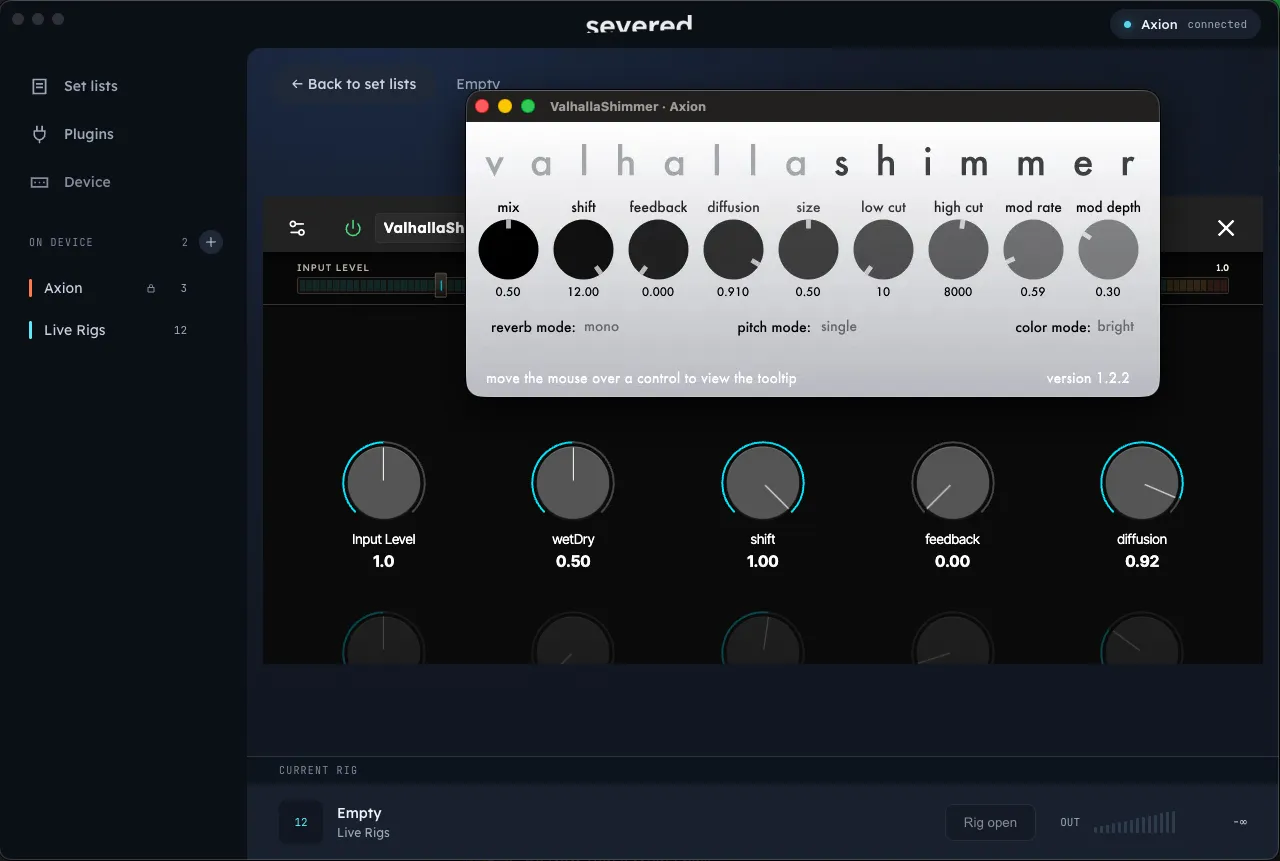
The Desktop icon appears only when a computer is connected and the plugin provides its own editor. Plugins without an editor use the controls Axion creates for them. If several computers are connected, an editor opened from the touchscreen appears on the one that connected most recently.
If the icon does not appear, check the connection first. See WiFi or companion app connection problems.