Footswitch Assignment
Assign an action to every knob-press and footswitch, saved per rig.
Every knob and footswitch can trigger an action, and you decide what. Assignments are saved with the rig, so the same physical switch can do different things from one rig to the next. The Controls page covers the physical knobs and switches; this is where you decide what they do.
Opening the screen
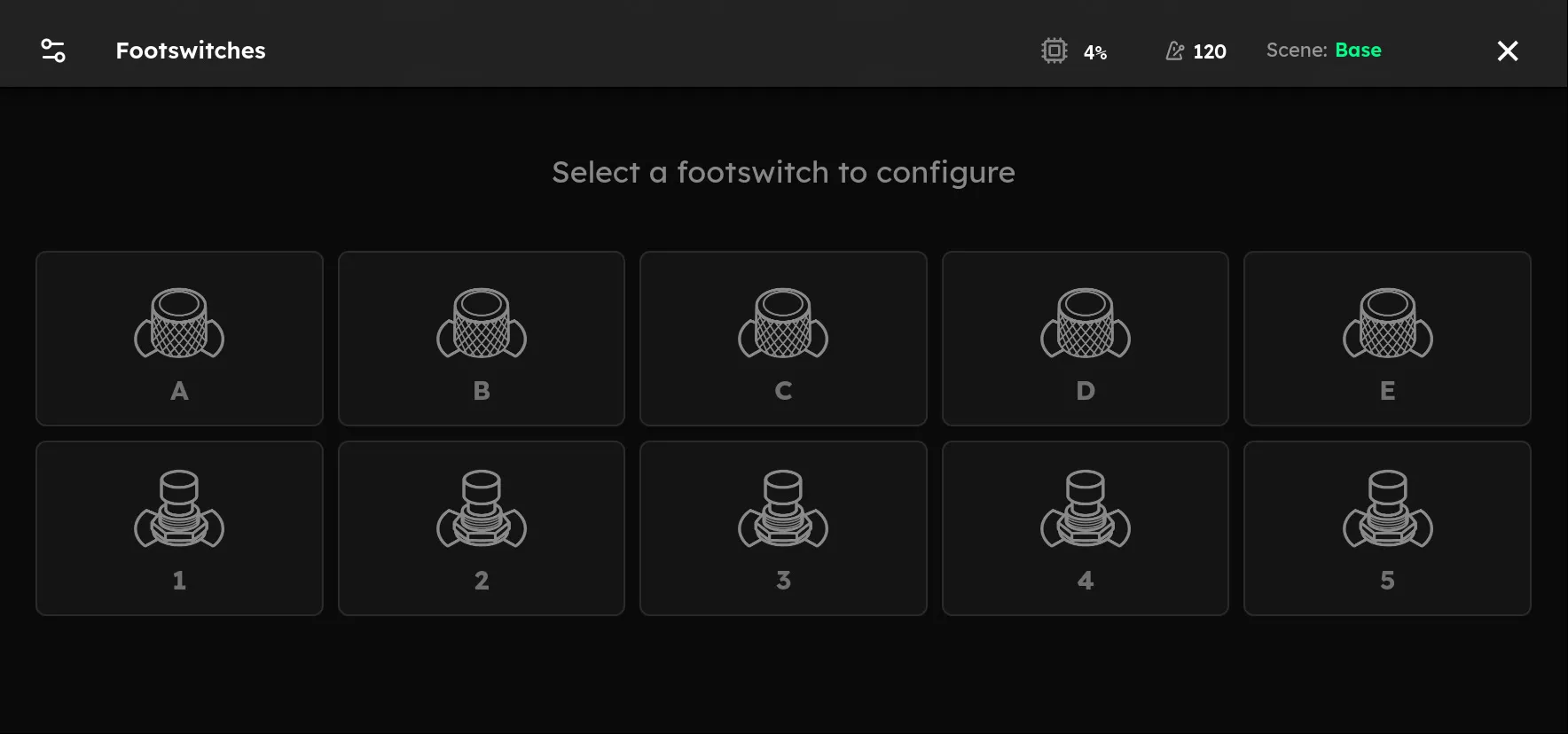
From the main menu, choose “Switches” to open the Footswitches screen. It shows all ten switches in two rows: the top row is the five knobs, A-E, and the bottom row is the five footswitches, 1-5. A small badge on a switch shows how many actions it already has.
Pick a switch to configure by tapping it on screen, or by pressing the physical switch.
Assigning a new device quickly
Right after you add an effect to the signal chain, every switch that is free to take a press action pulses in the accent color, and the new device’s tile shows a matching Assign badge. Press any pulsing switch and the device’s bypass toggle lands on it: the badge disappears, and that switch’s LED and the device’s tile flash three times in the device’s color before settling.
Tap anywhere on screen, press another switch, or just wait a few seconds and the invitation quietly goes away with nothing assigned. Tapping the device itself opens it as usual. Amps and cabinets are not offered. Turn off Auto-Assign New Devices under Settings → Preferences if you would rather assign everything by hand.
Press and hold
Each switch has two separate action lists: On Press and On Hold. A quick tap runs the On Press list; holding the switch runs On Hold. Add actions to whichever you want.
Choosing an action
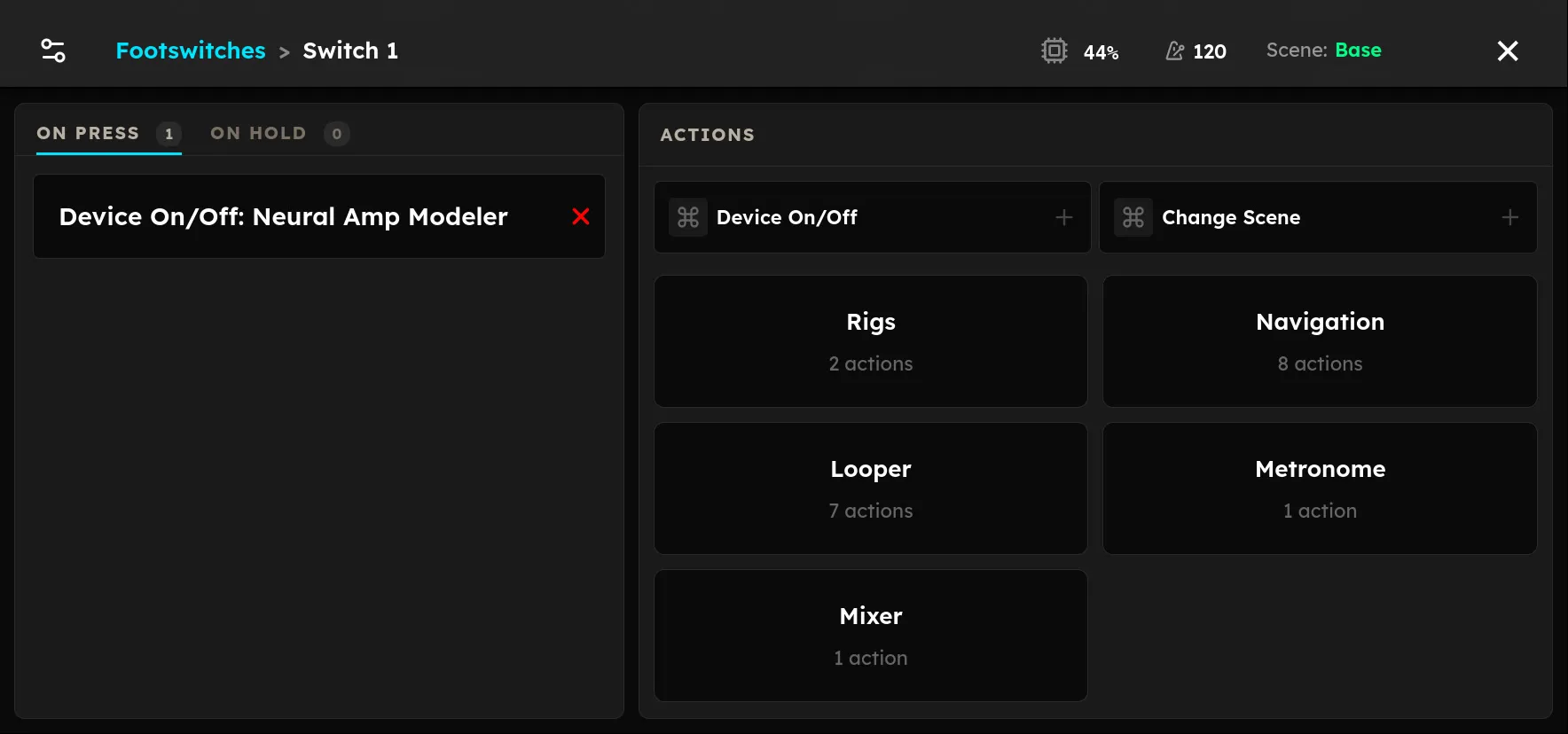
Actions come from a browser grouped by category:
- Signal Chain: toggle a device’s bypass, the classic stomp
- Scenes: change to a scene
- Rigs: step or select rigs
- Navigation: switch views and open screens
- Looper
- Metronome: tap tempo, and so on
The two most common, Toggle Device Bypass and Change Scene, are pinned at the top. Some actions take a parameter, such as which device to bypass or which scene to select; you set it as you add the action.
Stacking actions
A switch can carry several actions that fire in order. Drag to reorder them. If one action stops the sequence, any actions below it are marked unreachable so you can see they will not run.
What is not assigned here
The hold utilities printed on the panel (Tuner, view mode, and preset up and down) are built-in and always available, unless you re-assign them. To see your assignments as a pedalboard, and to tap them from the screen, use the Stomp view.