Focus Mode
Navigate lists and browser screens entirely from the footswitches, with color-coded labels along the bottom of the screen.
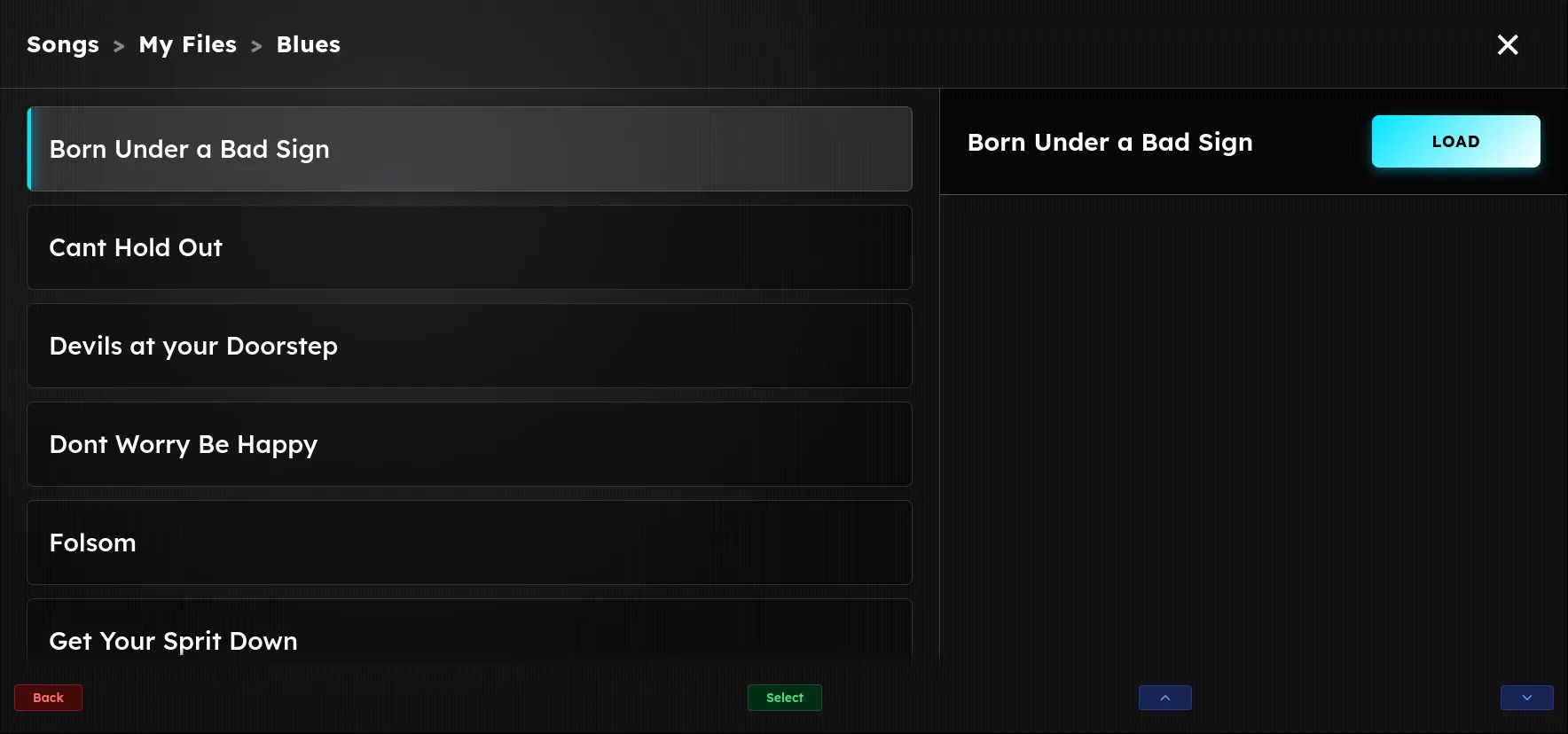
Some screens can be driven entirely from the footswitches, so you can browse and load without reaching for the touchscreen. When one of these screens is open, a row of color-coded labels appears along the bottom of the display. Each label sits directly above the footswitch it belongs to, and the footswitch itself lights in the same color, so you can find the right switch without looking down.
HOLD to activate focus mode functions!
To avoid conflicting with your normal stomps and footswitch assignments, focus mode actions require you to hold the switch to activate them. Be aware that single-tap on footswitches will still activate their assigned stomps, even on browser and list screens!
Where Focus Mode works
Focus Mode appears on the screens where you pick something from a list:
- Select Rig, where you choose a set list and load a rig.
- The file browser, where you move through folders and load a file such as an impulse response, a capture, or a lyrics file.
Any screen that opens with the label row along the bottom is fully foot navigable. Screens that do not show the row are touchscreen only.
The labels and their colors
Each label is color coded by what it does, and its footswitch LED matches that color:
- Red is Cancel or Back. In the file browser it steps up one folder, and at the top level it becomes Cancel and closes the screen. In the rig browser it closes the screen.
- Green is Select. It acts on the highlighted item: it opens the folder you are on, previews or loads a file, or loads the highlighted rig.
- Blue is Up and Down, shown as arrow labels. These move the highlight through the list.
A footswitch with no job on the current screen stays dark and shows no label.
Moving through a list
Use the blue Up and Down switches to move the highlight one item at a time. The list scrolls to keep the highlighted item in view, so a long set list or a full folder stays readable as you go. Hold either switch to repeat and travel quickly through a long list.
Selecting and going back
Press the green Select switch to act on the highlighted item.
- On a folder, Select opens it and the browser shows what is inside.
- On a file, the first Select previews it and a second Select on the same file loads it.
- On a rig, Select loads it and closes the browser.
Press the red switch to go the other way. In the file browser it steps back to the folder above the one you are in. When there is nowhere further up to go, that same switch cancels and closes the screen. In the rig browser the red switch closes the screen without loading anything.
With these four actions, move, select, and back, you can open a browser, walk into the folder you want, and load a file or a rig from across the room, hands free.