Axion Network Folder
Mount Axion's Content share over your network to copy plugins, presets, recordings, and other files on and off the unit.
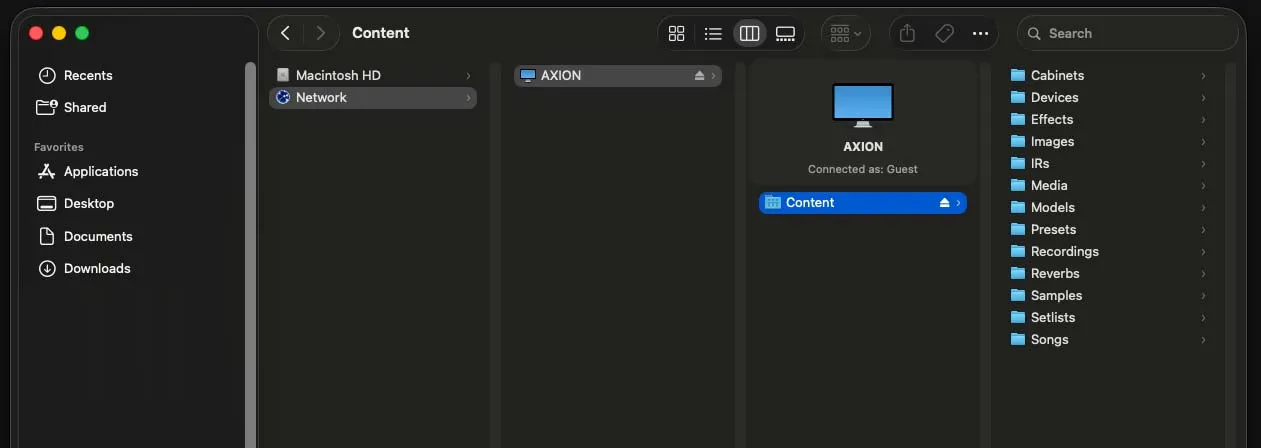
The Axion Network Folder is a shared folder your computer can connect to over the network to move files on and off the unit. It exposes Axion’s Content area, the same place your plugins, presets, recordings, and captures live, so you can drag files across in Finder or File Explorer just like any other network drive.
Behind the scenes it is a standard SMB share at smb://axion.local/Content.
Any operating system with a built-in SMB client can connect; you do not need
the companion app or any extra software.
Before you connect
- Put Axion and your computer on the same network.
- Know Axion’s network name. By default it is
axion.local. If you renamed the unit, use that name, or its IP address, whereveraxion.localappears below.
The folder is open on the local network. No username or password is required in this version. Because access is unauthenticated, keep Axion on a trusted network you control rather than a public or shared one.
Connect on macOS
- In Finder, choose Go → Connect to Server (or press ⌘K).
- Enter
smb://axion.local/Contentand click Connect. - When prompted, connect as Guest, then click Connect again.
The Content folder opens in a Finder window. Axion also advertises itself on the network, so it usually appears on its own under Locations in the Finder sidebar as Axion. Click it and choose Content to connect without typing the address.
Connect on Windows
- Open File Explorer.
- Click the address bar, type
\\axion.local\Content, and press Enter.
The Content folder opens. To keep it handy, right-click it and choose Pin to Quick access, or use Map network drive to give it a drive letter that reconnects automatically.
If Windows cannot find axion.local, use Axion’s IP address instead
(\\<ip-address>\Content).
Connect on Linux
Connect your file manager to smb://axion.local/Content, choosing anonymous
or guest access when asked. From a terminal you can also mount it with
gio mount smb://axion.local/Content or your distribution’s CIFS tooling.
What’s inside
The Content folder holds the files you can add to or copy from Axion:
- Devices: user-installed LV2 and VST3 plugins. See Third-Party Plugins.
- Recordings, Captures, and Presets: files Axion writes for you to copy back to your computer, plus presets you can add.
The Factory area holds the devices and content that ship with Axion. Add your own files under Content, not Factory.
You can leave the folder connected while you work. Axion picks up new files automatically. For example, a plugin dropped into Devices appears in the device browser a few seconds after the copy finishes, with no restart needed.
If Axion does not appear
- Confirm both devices are on the same network and that Axion has finished starting up.
- Try the IP address in place of
axion.local. - On Windows, make sure network discovery is turned on for the network you are connected to.
For more help, see Troubleshooting.