Building Rigs
Chain devices, save presets, assign footswitches.
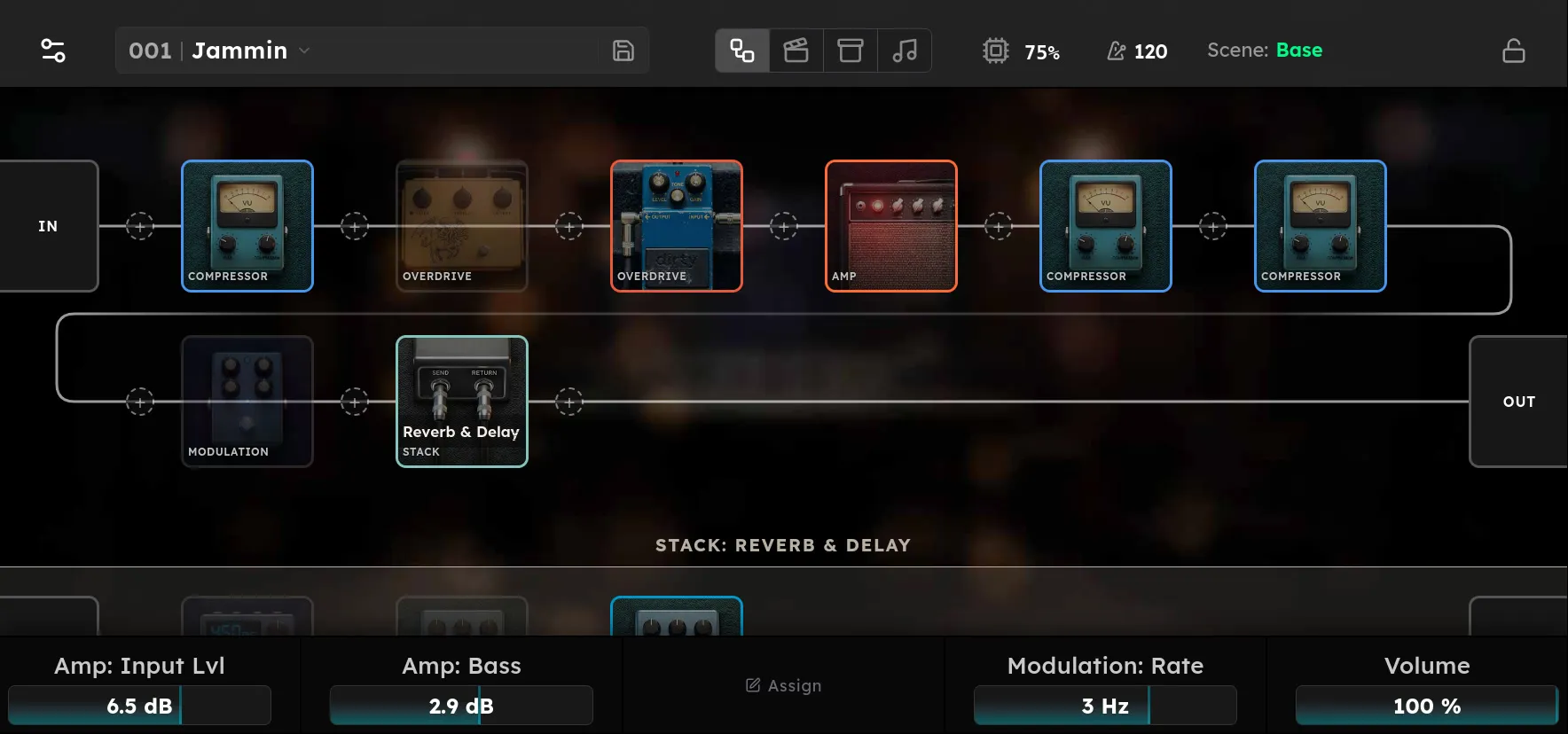
Rig Mode is the workspace for building a complete sound. A rig stores the signal chain, every device setting, bypass states, scenes, and the assignments for the physical controls. Start from a factory rig when you want a known working signal path, or clear and reshape a user rig for a new sound.
- Footswitch Assignment sets what each knob-press and footswitch does.
- Rig Controls binds the knobs and expression pedal to the parameters you want under your hands.
Both are saved with the rig, so each rig carries its own switch assignments and knob bindings.
Add a device
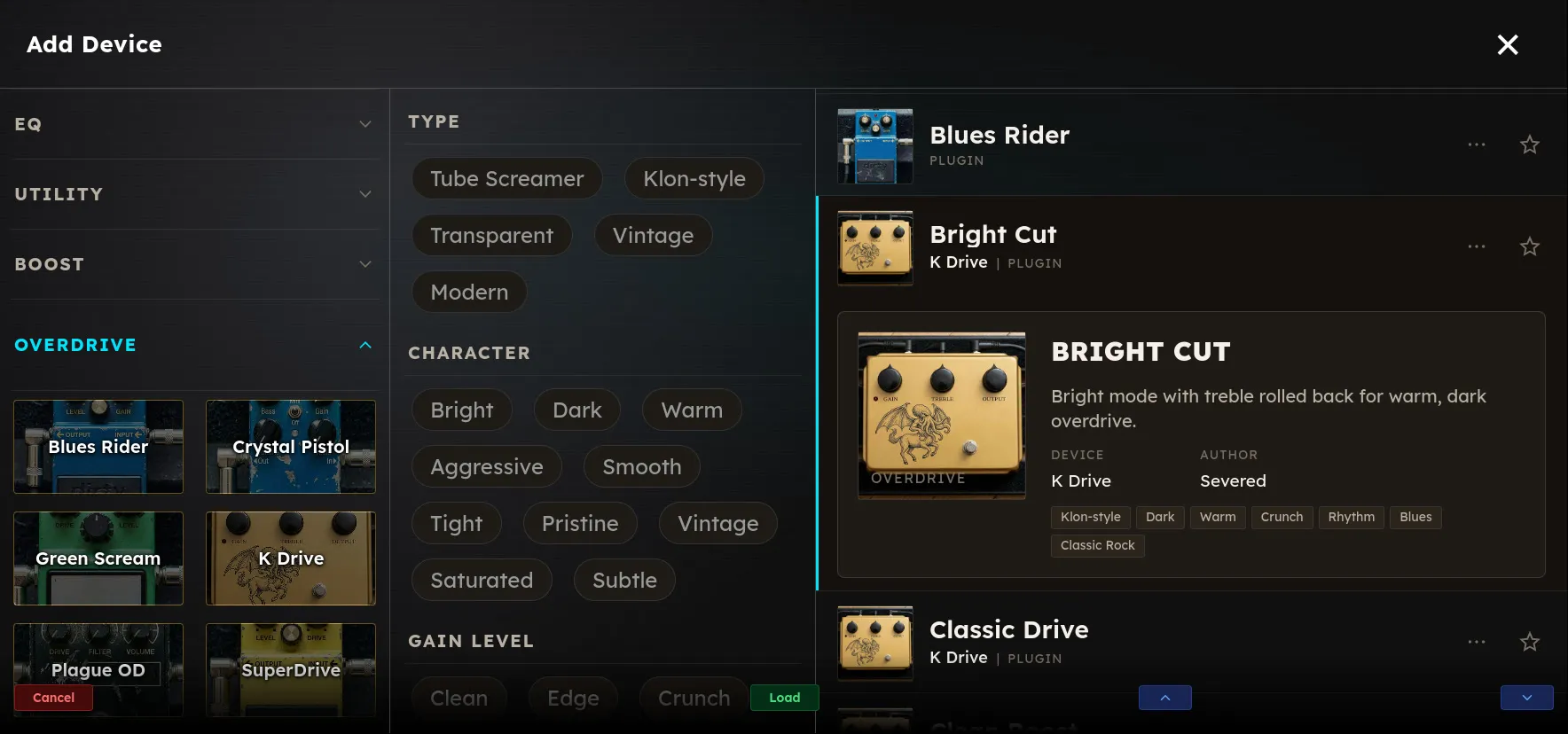
In Rig Mode, the signal flows from IN on the left through each device to OUT on the right. Tap a + dot at the point where you want a new device. The device browser opens with category and tag filters, search, and available presets. Tap a device or one of its presets to insert it at the selected position.
To add your own plugins to the browser, see Third-Party Plugins. It covers copying LV2 and VST3 plugins onto Axion, organizing browser categories with folders, and removing plugins.
Order has an audible effect. Drives usually sit before the amp, a cabinet usually follows the amp, and delay and reverb commonly sit near the end. These are starting conventions, not restrictions. See The Signal Chain for examples and the reason order matters.
Edit a device
Tap a device tile to open its full screen controls. The labels above knobs A through E show which parameters are currently assigned to the hardware row. Turn a knob or use the touchscreen control. Additional parameters appear on the device screen when a device has more than five.
Use the power control on the device screen to bypass it, or double tap its tile in Rig Mode for a quick comparison. A dim tile is bypassed. If a flame appears, that device has produced a peak above minus 1 dBFS. Tap the flame to open Auto Level and correct the gain through the chain.
Save a device preset
A device preset stores that device’s parameter values without storing the rest of the rig. On the device screen, tap the save icon beside the preset name, enter a name, and confirm. Factory presets remain unchanged; edited versions are saved as user presets and appear in the device browser.
Move or remove a device
Touch and hold a tile for about a third of a second, then drag it.
- Drop it on another device to swap their positions.
- Drop it on a + dot to move it between devices.
- Drop it on Remove Device at the bottom of the screen to delete it from the rig.
Removing a device also removes its sound and any control assignment that targets that instance. Save a device preset first if you want to reuse its settings elsewhere.
Save the rig
Tap the save icon beside the rig name. In the save dialog:
- Choose a user set list in the left column, or select New Setlist.
- Choose the program slot in the right column.
- Edit the rig name at the top.
- Tap Save.
An occupied user slot is replaced when you save to it. Factory rigs cannot be overwritten, so editing one and saving creates a user copy. Saving captures the base device settings as well as scenes and hardware assignments.
Recall a rig
Tap the current rig name to open Select Rig, choose a set list, and tap the desired rig. Loading replaces the complete active signal path in one operation. Unsaved edits to the previous rig are not carried forward, so save before loading another rig when you want to keep the changes.
On stage, use assigned next and previous rig actions, the built in preset hold actions, or MIDI bank and program messages. See Rigs and Set Lists for addressing and organization.
Export and share
The Axion desktop companion can connect to a unit on the same network, browse its set lists, and export a rig as a JSON file. Select the set list, find the rig, and choose Export on its row. Keep exported files as backups or send them to another Axion owner.
The current companion app exports rigs but does not expose an import action. Keep the exported JSON unchanged so it remains suitable for restore and import support that accepts Axion rig files.