Screen Lock
Lock the touchscreen and knobs so a stray cable, a bumped panel, or someone else's boot can't change your tone mid-song. Footswitches keep working.
Stages are hostile places for a touchscreen. Cables swing, people lean, and a neighbouring musician’s enthusiastic footwork does not always respect your carefully dialled-in rig. Screen Lock freezes the front panel so none of that can touch your sound, while leaving the footswitches fully live, because you still have a show to play.
Screen Lock is a performance safeguard, so it only applies to the four main view modes: Rig, Scene, Stomp, and Song. Step into the menu, the tuner, settings, or any other screen and the lock steps aside. Return to a main view and it re-engages exactly as you left it.
What it blocks
When the screen is locked:
- The touchscreen is inert. Taps, drags, and presses do nothing.
- The knobs are inert. Turning an encoder changes nothing.
- The footswitches keep working. Scenes, stomps, tuner, and rig changes all behave exactly as they normally would. Locking the screen never costs you a switch.
In other words, the two things a flailing cable or a wayward boot can knock, the screen and the knobs, are exactly the two things that stop responding.
Locking the screen
- Tap the padlock icon in the top-right corner.
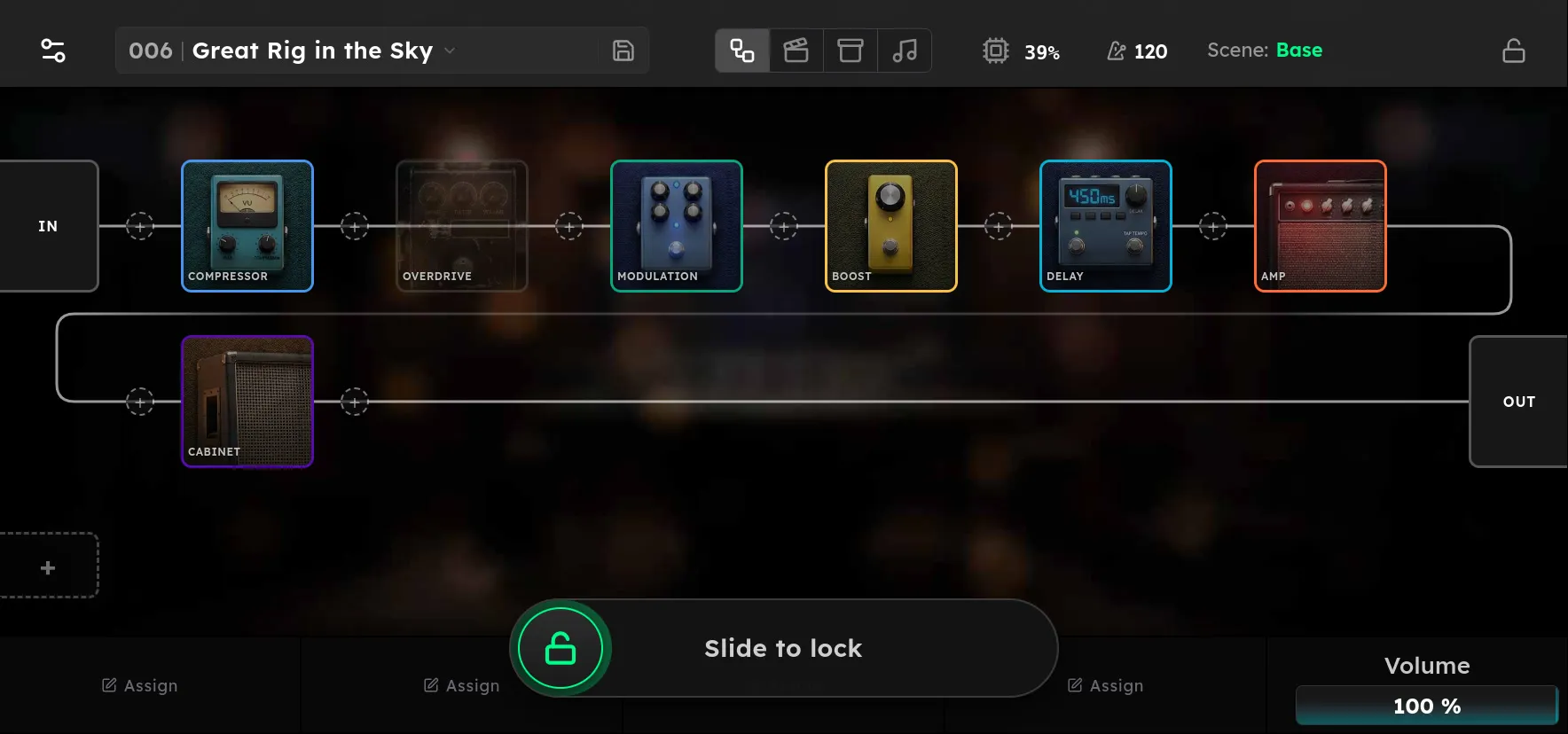
- A Slide to lock control appears along the bottom of the screen.
- Slide it all the way to the right.
The control confirms with a red Locked, then disappears. The padlock in the corner turns into a red Locked badge so there is never any doubt about which state you are in. If you tap the icon and then think better of it, just wait. The slider dismisses itself after five seconds of inactivity.
Unlocking the screen
- Tap anywhere on the screen, or turn any knob.
- A Slide to unlock control appears along the bottom.
- Slide it all the way to the right.
The control confirms with a green Unlocked and the corner returns to the plain padlock. The slider is red while the screen is locked and flips to green the moment you unlock, so the colour always tells you where you stand.
A locked screen ignores taps and knobs everywhere except that unlock slider. An accidental brush of the screen simply offers you the way out rather than doing anything to your rig.
Screen Lock deliberately does nothing to your footswitch assignments, scenes, or audio. It is purely a guard over the front panel. Lock it at soundcheck, forget it exists, and let the cables misbehave all they like.