Scene Mode
Snapshot and switch between setups within a single rig.
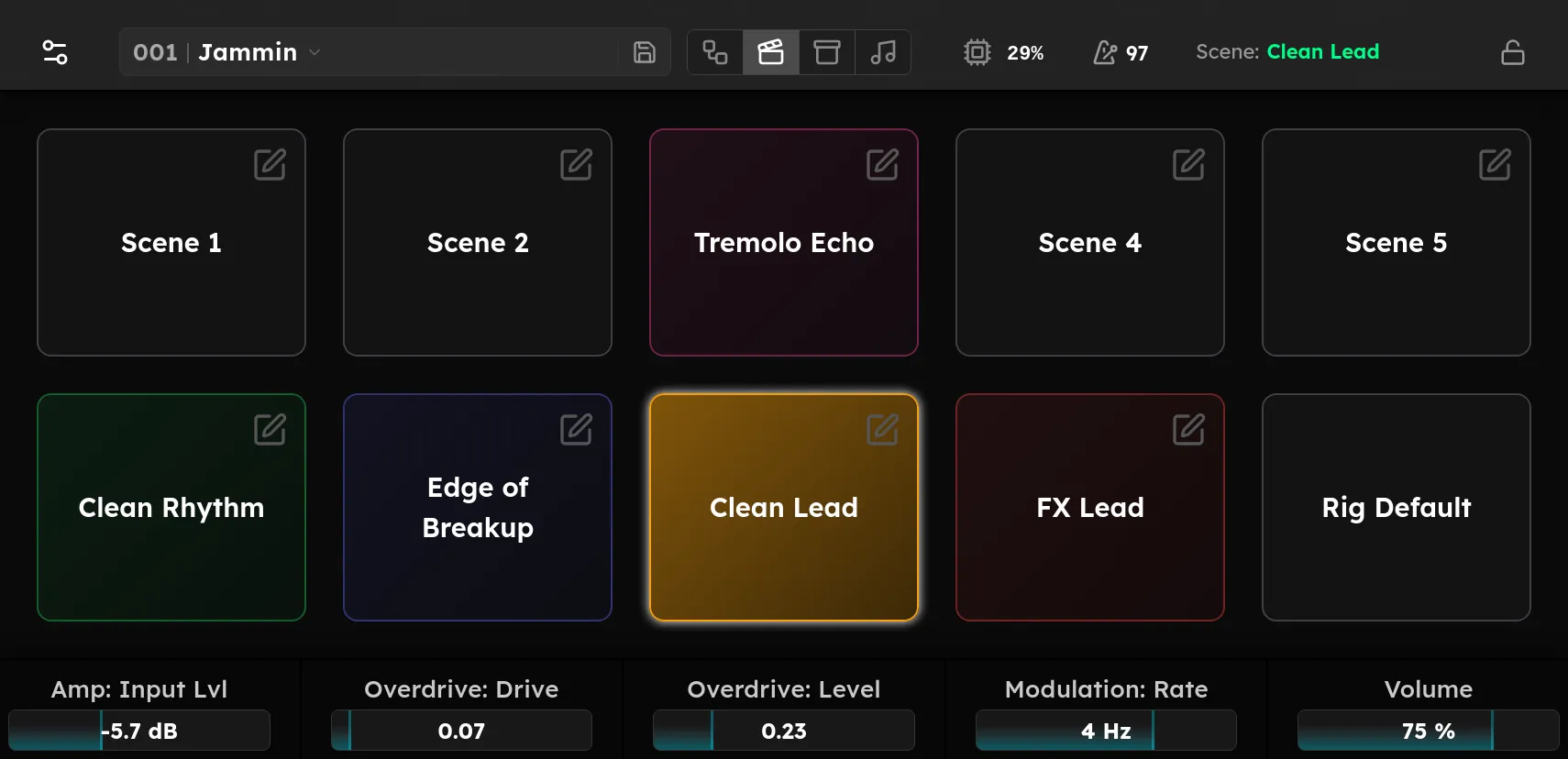
A scene is a saved setup within one rig. Instead of building separate rigs for your rhythm and lead sounds, you keep a single rig and flip between scenes for instant changes without any load times or audio drop-outs. Each rig can store up to nine scenes, plus the Base Scene, which is the default settings for all devices in the rig. Think of it as the “foundation” that other scenes build upon.
What a scene captures
A scene stores any number of parameter overrides. When a scene is recalled, the changes are instantly applied: the “Base Scene” settings all all first applied, then your selected scene’s overrides are applied over those. This allows you to fully control which parameters and settings a scene will modify, and when.
The only things a scene does not capture are settings that cannot change in real time, such as a device’s loaded model file (for example a NAM capture). Those stay the same across every scene in the rig, because those settings would cause a drop in audio, which scenes are designed to avoid.
The scene grid
The Scenes mode overrides all ten footswitches, and shows a tile for each scene and a Rig Default tile. Tap a tile or its corresponding foot switch to switch to that scene instantly; the active scene is highlighted.
Naming and colour
Tap a scene’s edit button to give it a name and a colour. The colour carries through to the footswitch lights and the Stomp view, so a glance tells you which scene you are on.
Switching hands-free
Assign Change Scene actions to footswitches (see Footswitch Assignment) to step between scenes with your feet. While the Scenes view is open, the footswitches map directly to the scenes on screen.
Rig Default
Rig Default is the base the scenes are built on. Returning to it drops whatever scene you were in.
Scenes are saved with the rig.