05.28 · DEVICES EQ
Signal 8-Band EQ
CATEGORY
EQ
8-band parametric equalizer with soft clipping
Parameters
| Parameter | Range | Default |
|---|---|---|
| Band 1 Frequency | 20 – 20000 | 100 |
| Band 1 Q | 0.1 – 10 | 0.707 |
| Band 1 Gain | -12 – 12 | 0 |
| Band 1 Enable | 0 – 1 | 0 |
| Band 0 Type | 0 – 4 | 0 |
| Band 2 Frequency | 20 – 20000 | 250 |
| Band 2 Q | 0.1 – 10 | 0.707 |
| Band 2 Gain | -12 – 12 | 0 |
| Band 2 Enable | 0 – 1 | 0 |
| Band 1 Type | 0 – 4 | 0 |
| Band 3 Frequency | 20 – 20000 | 500 |
| Band 3 Q | 0.1 – 10 | 0.707 |
| Band 3 Gain | -12 – 12 | 0 |
| Band 3 Enable | 0 – 1 | 0 |
| Band 2 Type | 0 – 4 | 0 |
| Band 4 Frequency | 20 – 20000 | 1000 |
| Band 4 Q | 0.1 – 10 | 0.707 |
| Band 4 Gain | -12 – 12 | 0 |
| Band 4 Enable | 0 – 1 | 0 |
| Band 3 Type | 0 – 4 | 0 |
| Band 5 Frequency | 20 – 20000 | 2000 |
| Band 5 Q | 0.1 – 10 | 0.707 |
| Band 5 Gain | -12 – 12 | 0 |
| Band 5 Enable | 0 – 1 | 0 |
| Band 4 Type | 0 – 4 | 0 |
| Band 6 Frequency | 20 – 20000 | 4000 |
| Band 6 Q | 0.1 – 10 | 0.707 |
| Band 6 Gain | -12 – 12 | 0 |
| Band 6 Enable | 0 – 1 | 0 |
| Band 5 Type | 0 – 4 | 0 |
| Band 7 Frequency | 20 – 20000 | 8000 |
| Band 7 Q | 0.1 – 10 | 0.707 |
| Band 7 Gain | -12 – 12 | 0 |
| Band 7 Enable | 0 – 1 | 0 |
| Band 6 Type | 0 – 4 | 0 |
| Band 8 Frequency | 20 – 20000 | 16000 |
| Band 8 Q | 0.1 – 10 | 0.707 |
| Band 8 Gain | -12 – 12 | 0 |
| Band 8 Enable | 0 – 1 | 0 |
| Band 7 Type | 0 – 4 | 0 |
| Volume | 0 – 2 | 1 |
| Clipper Enable | 0 – 1 | 0 |
| Clipper Amount | 0 – 1 | 0 |
Overview
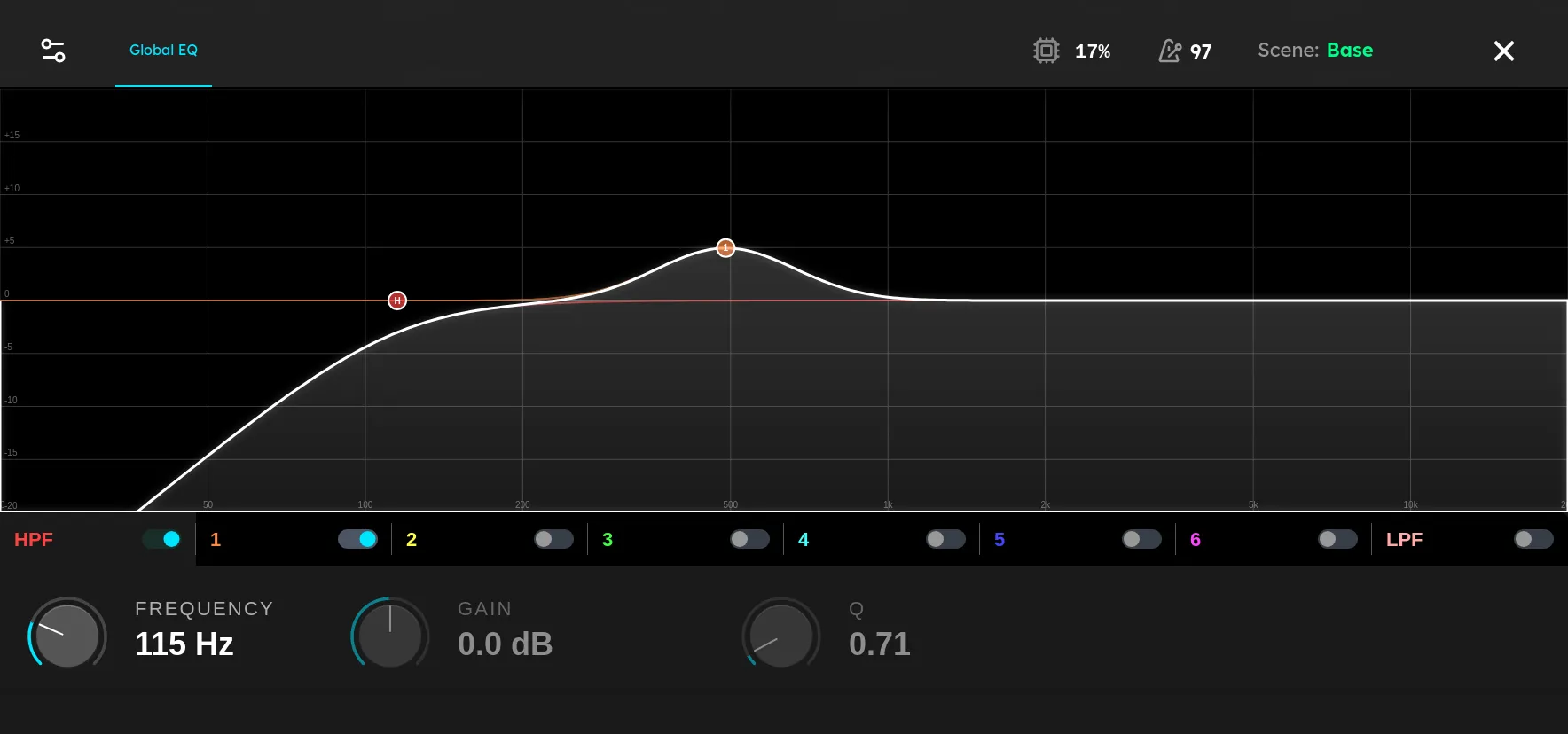
Signal 8 Band EQ provides eight independently enabled filters for corrective or creative tone shaping. Each band can be a peaking filter, low pass, high pass, low shelf, or high shelf. Frequency chooses the center or cutoff, Q sets the width or resonance, and Gain sets boost or cut for peaking and shelf types.
Use broad, small adjustments to balance a complete rig, or a narrow Q to find and reduce a resonance. Volume sets the output after all eight bands. Clipper Enable turns on a soft output clipper, and Clipper Amount sets its drive. The clipper can round occasional peaks, but it is also a nonlinear effect and should not replace sensible gain staging.
Tips
- Enable only the bands you need. Begin with Q around 0.7 to 1.4 and make small cuts or boosts of 1 to 3 dB.
- To find an unpleasant resonance, temporarily boost a narrow band and sweep Frequency. Once found, change the boost to a modest cut and widen Q if the result sounds unnatural.
- Use a high pass filter to remove rumble and a low pass filter to tame excess fizz. Set both while listening through the final output system.
- Use shelves for broad tonal balance and peaking bands for localized changes.
- Leave the clipper off while setting the EQ. Enable it afterward and raise Clipper Amount only until occasional peaks are controlled.