Mixer
Set input gain for IN 1-4 and the level of every physical output, read the meters, compensate for stage volume, and bypass every cabinet at once.
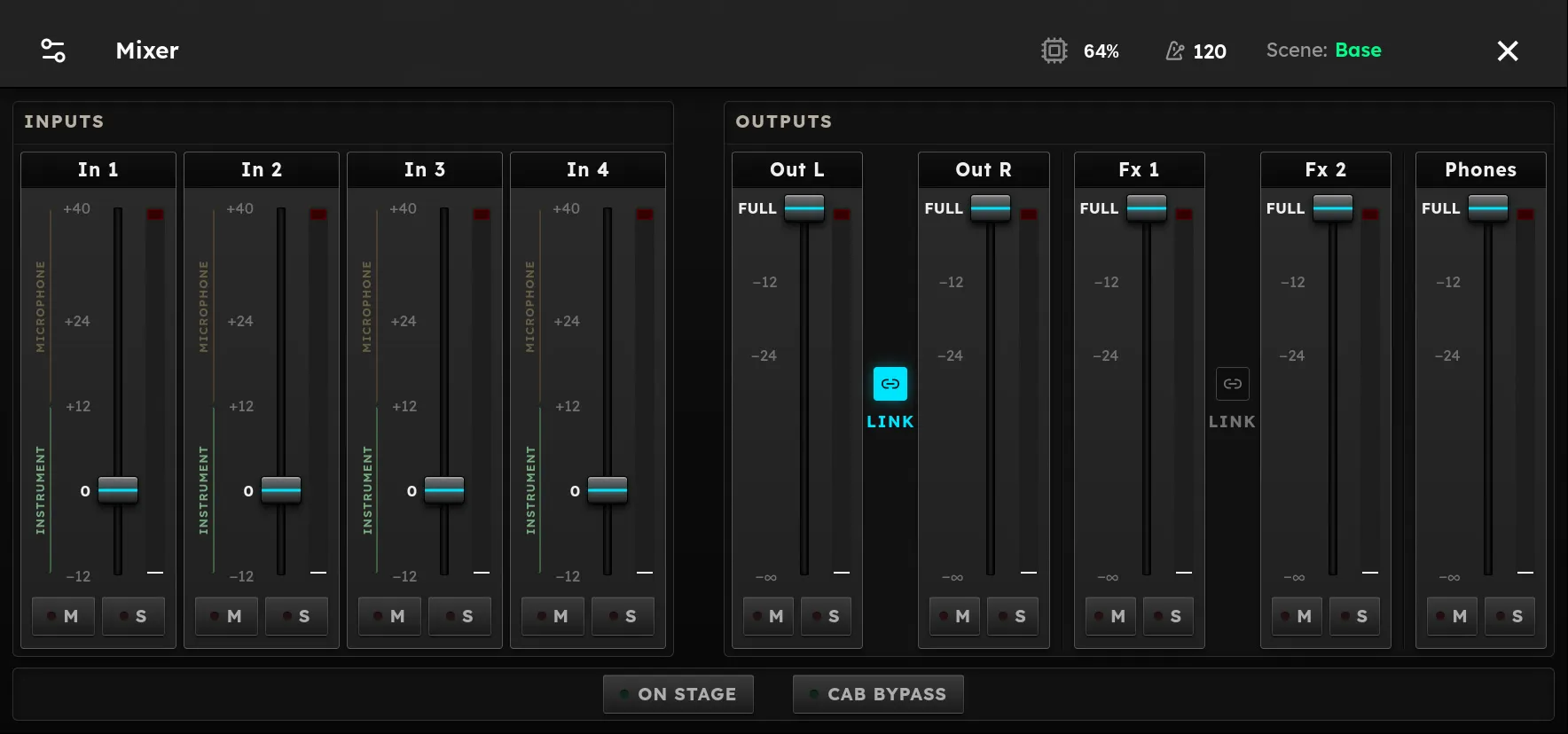
The Mixer is where Axion meets the outside world. It sets how much gain each input jack gets before the signal reaches your rig, and how loud each physical output jack is after the rig has done its work. Every strip has a meter, so the Mixer is also the first place to look when you hear nothing or something sounds distorted.
To open it, tap the menu button at the top left of the screen and choose Mixer. Tap ✕ at the top right to go back to your rig.
Mixer settings belong to the unit, not to a rig. They stay the same when you change rigs, scenes, or set lists, and Axion keeps them when you turn it off. Set them once for your instrument and your rig, and leave them alone.
Inputs
The INPUTS panel has one strip for each input jack, In 1 through In 4. Each fader sets the analog gain for that jack, from −12 dB to +40 dB. 0 is unity gain and is the default.
A guide next to each input fader shows the range that suits your source:
- INSTRUMENT (green), −12 dB to +12 dB. For guitar, bass, and other line-level or pickup sources.
- MICROPHONE (yellow), +12 dB to +40 dB. Use the extra gain for a microphone, which puts out a much weaker signal.
The label for the range the fader is in shows brighter than the other one.
Setting input gain
- Turn your monitoring down.
- Play the hardest you will play in a song, such as a full chord dug in with the pick, with your guitar’s volume all the way up.
- Watch the meter for that input. Raise the fader until the loudest peaks reach the yellow area of the meter, and stop before the red.
- If the red clip light at the top of the meter turns on, lower the fader a little and try again.
Most passive guitars do well near 0. Hot active pickups may need a few dB less. Input gain changes how hard the signal drives every device in your rig, so amp models and drives respond differently after you change it. Set it once and set your loudness with the output controls.
Outputs
The OUTPUTS panel has one strip for each output jack:
| Strip | Jack | What it sets |
|---|---|---|
| Out L, Out R | OUT L, OUT R | Level of the main outputs |
| Fx 1, Fx 2 | FX 1, FX 2 | Level of the two send outputs |
| Phones | Headphones | Headphone level |
Output faders run from FULL at the top down to −∞ (silence) at the bottom. FULL means the jack puts out its full level. It does not mean the signal is clipping. Turn the fader down to match the input of whatever you connect: a powered speaker, an interface, a mixing desk, or the FX loop return of an amp.
Linking pairs
The LINK button between two strips makes them a stereo pair. When LINK is lit, moving either fader moves both. When you turn LINK on, the right strip jumps to match the left one (Out R matches Out L, and Fx 2 matches Fx 1). When you turn LINK off, both faders stay where they are, and you can then set them separately.
The main outputs are linked when the unit ships. The FX outputs are not, because they are often used as two separate sends.
Headphones
The headphone jack plays the same mix as the main outputs, with its own volume. The Phones fader sets the headphone level from FULL down to −∞, separately from the Out L and Out R faders, so you can monitor on headphones at a comfortable level without changing what goes to your speakers. The Phones meter shows whichever main output is louder.
You can also set the headphone level without opening the Mixer. Click knob E to switch it from Volume to Phones, turn it to set the level, and click it again to switch back.
Master volume
The Mixer’s output faders are not the volume knob you use while playing. The master Volume (knob E by default, see Controls) is a separate control. It turns the main outputs and the headphones up or down before they reach these faders. It does not move the faders on this screen and does not change the FX sends.
A good way to set this up:
- Set the master Volume near the top of its range.
- Use the Out L / Out R faders to match Axion to your speakers or interface, so that full master volume is as loud as you will ever need.
- Use the master Volume for everyday changes in loudness.
The main outputs and headphones also pass through a built-in output limiter. It does nothing at normal levels. It only stops very loud peaks from clipping the outputs.
On Stage
The ON STAGE button is in the row below the two panels. Turn it on when you play Axion loud: through the house PA, an amp, or a full range speaker at stage volume.
Your ears do not hear all frequencies evenly, and the balance shifts with volume. This is known as the loudness curve, or the Fletcher-Munson effect. At low volume, bass and treble are harder to hear than the midrange. As the volume goes up they come forward, so a rig you dialed in quietly at home or in the studio can sound boomy and harsh on stage, even though nothing in it changed.
On Stage compensates for this. It applies one EQ curve to the output of every rig that evens out what loud playing exaggerates, so the rig sounds much as it did at low volume.
Tap ON STAGE to turn it on. Its light turns green. Tap it again when you go back to quiet playing, and the light goes dark.
A few things to know:
- Your rigs are not changed. On Stage sits on top of them, so you can build and save rigs at a comfortable volume and use the same rigs live.
- Turn it off for practice, recording, and quiet headphone listening. At low volume the correction is not needed, and rigs will sound thin with it on.
- If you dial in a rig at stage volume with On Stage on, it will sound different at low volume with On Stage off. Pick one way of working: build quietly and turn On Stage on for the show.
- On Stage and Cab Bypass are separate switches. Through a power amp and a guitar cabinet at stage volume, you may want both.
Cab Bypass
The CAB BYPASS button is in the row next to ON STAGE. Turn it on when Axion feeds a power amp and a real guitar cabinet. The real speaker then does the job of the Cabinet device, and you do not want both.
Tap CAB BYPASS to turn it on. Its light turns green, and the Cabinet blocks in every rig are bypassed. Tap it again to turn it off. The light goes dark and each Cabinet goes back to the on or off state it has in its rig.
A few things to know:
- Your rigs are not changed. Cab Bypass sits on top of them, so you do not have to bypass or delete the Cabinet in each rig, and the same rigs sound right through headphones or full range speakers when you turn it off.
- Like every Mixer setting, it stays on when you change rigs, scenes, or set lists, and when you turn Axion off.
- It applies to every output at once, headphones included.
- Impulse IR and any other device in the Cab & IR category are bypassed the same way.
- In the rig editor, a Cabinet held off by Cab Bypass is dimmed and shows a red mute icon, and its own bypass does not respond until you turn Cab Bypass off. See Cab Bypass on the Cabinet page.
Meters
Every strip has a segmented level meter that shows the signal’s peaks:
- Green is a normal playing level.
- Yellow (from −12 dB below full scale) is a strong, healthy level.
- Red (from −6 dB below full scale) is close to the limit.
A thin peak line holds at the loudest recent level for one second, then falls. The clip light at the top of each meter turns red when the signal reaches full scale, and stays on for two seconds so you can see it. Tap it to clear it sooner.
Input meters show the signal coming in from the jack. Output meters show the signal your rig sends to that jack.
Tips
- If a rig sounds too fuzzy or too clean compared with how it sounded elsewhere, check the input fader before changing the rig. Input gain affects every amp and drive.
- If the input meter moves but you hear nothing, check the output strip for the jack you are using, then follow Troubleshooting.
- If every rig sounds thin and fizzy through headphones or full range speakers, check that CAB BYPASS is off.
- If every rig sounds boomy and harsh once you turn up on stage, turn on ON STAGE. If every rig sounds thin at low volume, check that it is off.
- When using the FX sends for an FX Loop, set the Fx fader to suit the input of the external pedal or processor, and leave LINK off if the two sends go to different places.